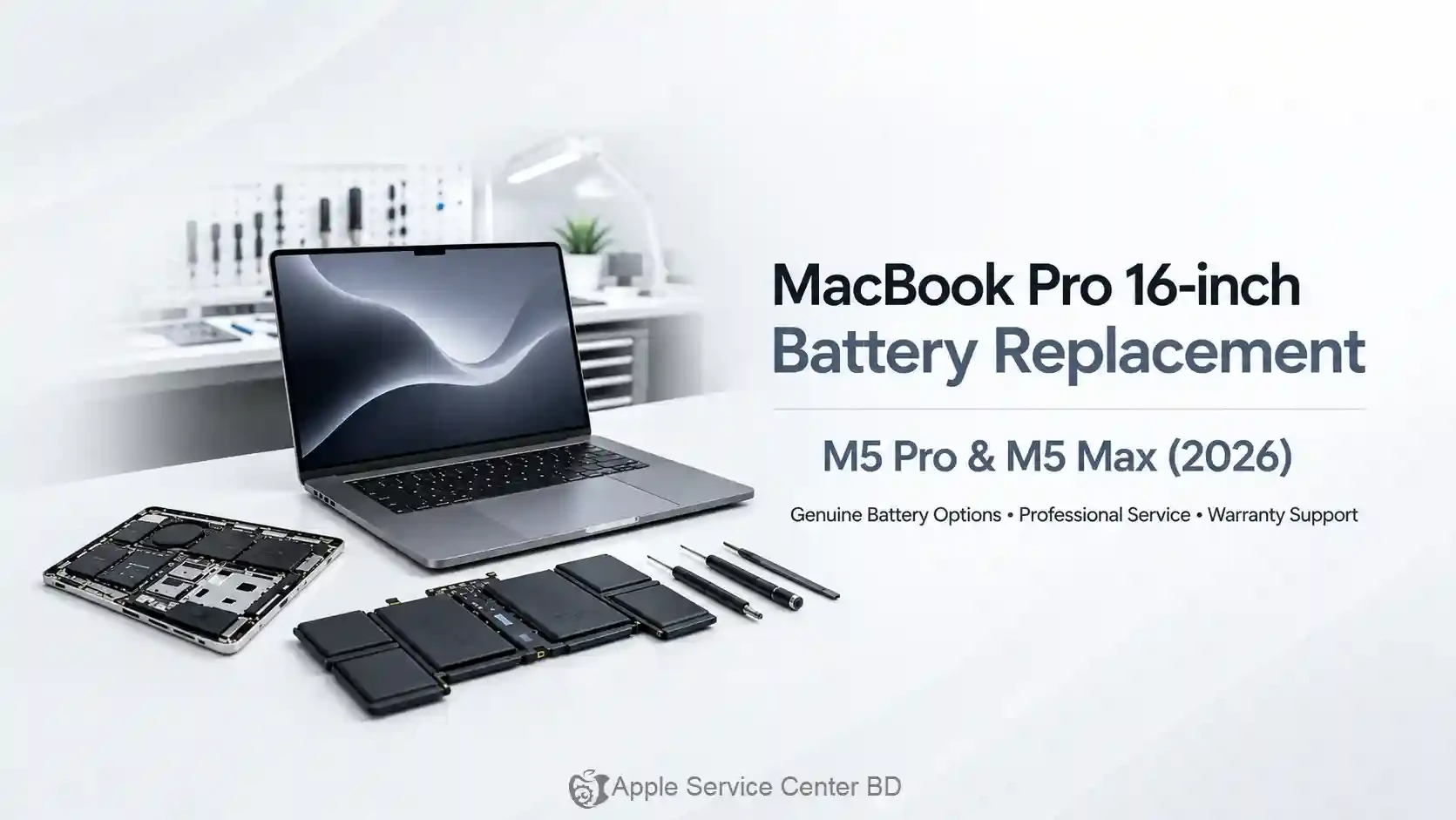

A single sticky key may be easy to ignore, but repeated keys, missed keystrokes or a trackpad that will not click can quickly slow down work. The cause may be debris, a settings issue, normal wear, a swollen battery pressing from below or liquid damage.
Check the pattern, not just one key
Test several keys, both shift keys, the space bar and the trackpad click. Check whether an external keyboard or mouse works, and notice whether the fault changes when the MacBook is connected to power. If a group of nearby keys fails together, the issue may be deeper than one keycap.
Do not force the keyboard or trackpad
Do not spray cleaner into the openings or lift keycaps without the right tools. If the trackpad becomes hard to click, the bottom case looks raised or the laptop becomes unusually warm, stop using it and arrange a battery inspection. A swollen battery can create pressure that looks like an input fault.
After liquid exposure
Shut the MacBook down, disconnect the charger and avoid repeated power-on tests. Bring the charger and explain what liquid reached the device. Early inspection can help identify contamination before it spreads to other parts.
Choose from the MacBook repair services or book a diagnosis with the exact input symptoms included.